
So, you have a bunch of direct messages you need to get rid of in a hurry? What are you going to do? Going through all these Discord DMs one-by-one is going to take days. There has to be a faster way to do this… right? Say hello to Redact’s Discord Tools.
Using Redact, you can very quickly delete your direct messages from a specific user or from all users, at the same time. In this post we are going to walk through exactly how to nuke all those DMs in your chat history.
Step 1
Step one is pretty obvious, download and load Redact. You will be presented with the options below.
The first thing you need to do is click on the “DMS” tab you see the red arrow pointing to.
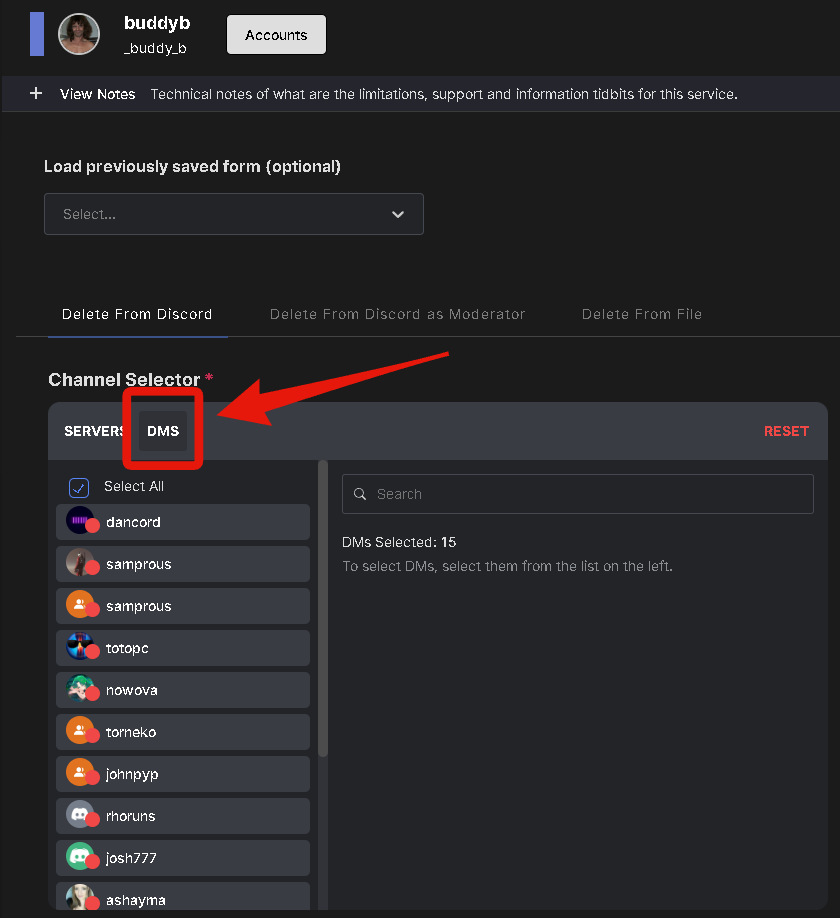
After you choose the DMs tab, you’ll have the option to pick and choose which people you want to delete DMs from. You have the option to simply “select all” at the top of your DM list which will find and remove your entire direct message history with everyone.
Step 2
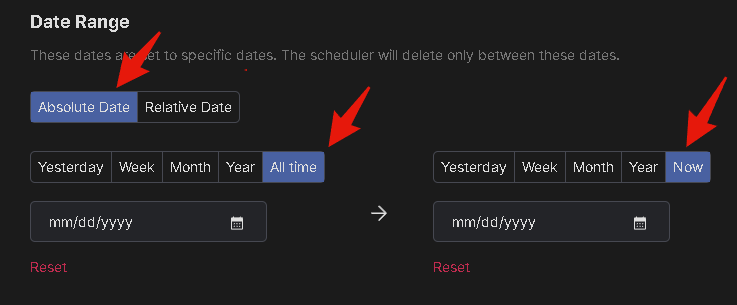
The main focus in step #2 will be to choose your date range settings. The image shown above is your date selector. Redact allows you to search DMs that took place on a specific day, or you can search within a date range. The settings displayed in the image above are the settings you would use to search and remove your ENTIRE Discord DM history, adjust accordingly to fit your needs. Again, the default search settings you see above will tell Redact to go find your DMs from the beginning of time.
Step 3
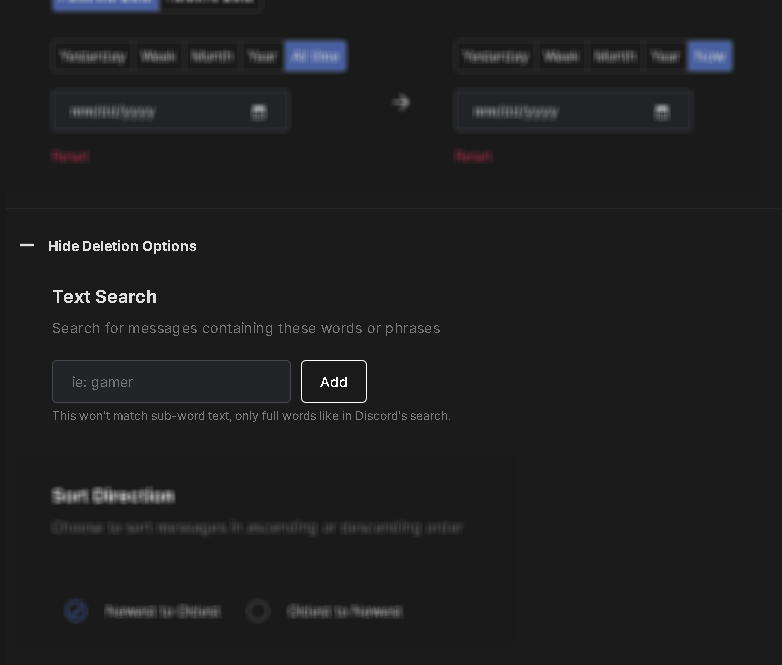
This is the text search tool where you tell the app if there are any specific words or phrases you’d like it to find. This could be anything from the name of your ex to your old clan tag or anything in-between. You’re free to enter as many keywords as you like into this box. If you want to search your entire Discord DM history, you’ll want to enter nothing into this box. Once you enter keywords, the app will only allow you to delete messages that contain those specific keywords. So the more keywords you enter here, the more narrowed down your search becomes.
Step 4
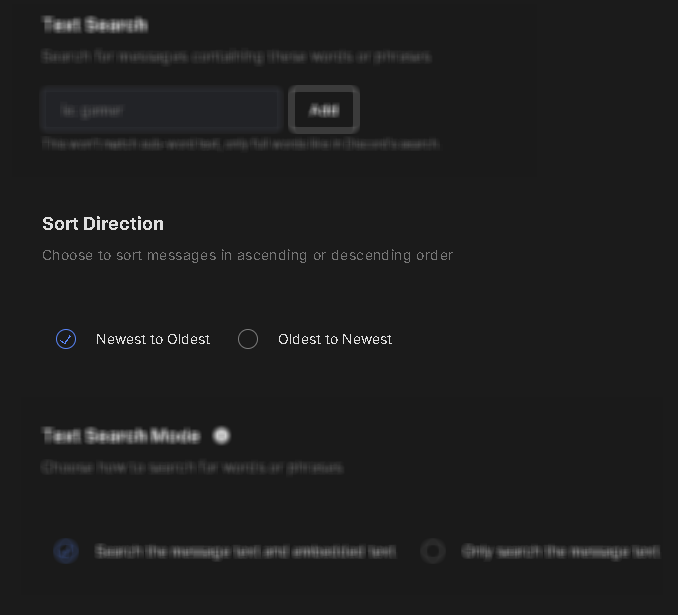
Next, we have “sort direction“. This is a pretty self-explanatory setting. The one good use for this setting is if you have a long Discord history and you’re in a hurry to locate a specific message. If you know the message in question was sent back in 2018, you’d likely select “oldest to newest” so you can bypass all your newer DMs. This can increase search speed significantly. Remember, Discord does impose a rate limit on us. So, if you’re pressed for time, utilizing this option correctly could save you a lot of hassle. The more content/history you have on Discord, the more important this option is.
Step 5
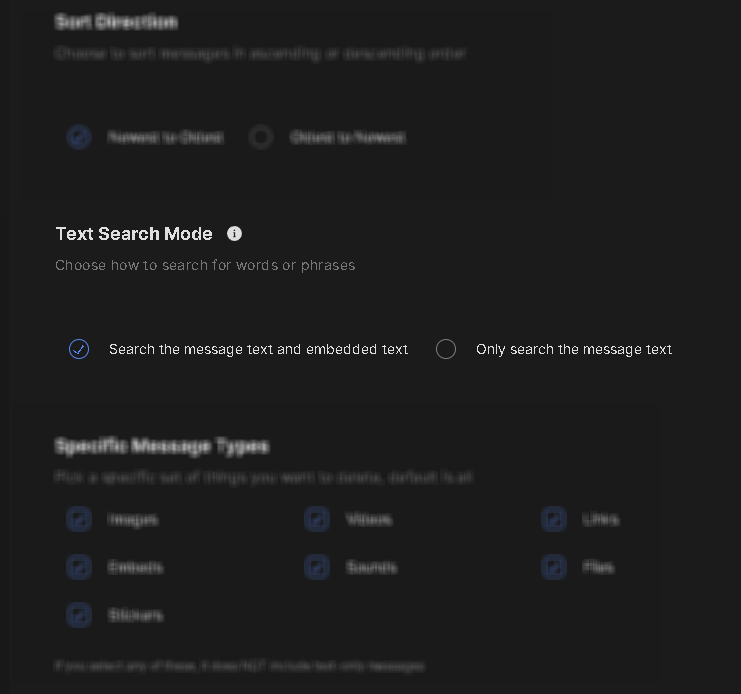
“Text mode search” is the setting that tells Redact if it should look for just text, or also embedded text.
By default, message text & embedded text is selected. If you’re wanting to search your DMs in full, from beginning to end, we recommend leaving the default selection.
You can always play around with these settings and do different selections until you get the results you desire.
Step 6
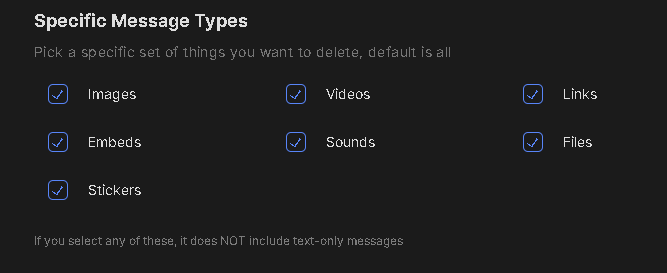
For this step, we need to choose what we want Redact to search our direct messages for. Are we looking for pictures? Text? Files? Videos? What type of content are we hunting for? The default option here is set to all boxes being ticked. If you know that you’re only wanting to delete DMs containing a specific type of media, then you would need to adjust these settings according to your needs. To mass delete DMs by doing a dragnet-type approach, you would leave all the boxes ticked.
Step 7
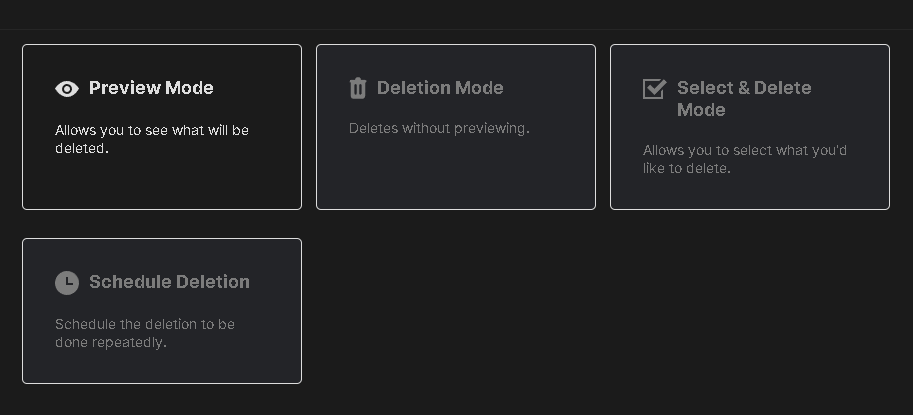
This is the final and most important step of the process. These are your deletion options that tell Redact what to do with the DMs.
- Preview Mode. This is always the first one you should do. This option allows you to see the search results your filter options above produced. The only way to know if you chose your settings correctly is to look at a preview. Always do preview mode before using deletion mode.
- Deletion Mode. This is the nuke button. When you choose this mode and push the button, it’s a wrap. Your DMs are gone. That’s why it’s so important to use preview mode before you use deletion mode.
- Select and Delete Mode. This mode allows you to run your search and then presents you with a screen where you can pick and choose what DMs to keep and which DMs to delete. This is a fantastic and safe option, especially for those who are looking through a smaller set of DMs. If you’re doing a complete DM deletion, this option will take significant amounts of time.
- Schedule Deletion. This is a handy option where you can choose to remove your DMs at a scheduled time. For example, you could clear your entire DM history once per week. This way you don’t have to worry about years of old Discord DMs floating around on the internet.
That’s the whole flow. Run a preview, check the results, and pull the trigger. Your deleted DMs disappear for both sides of the conversation, and nobody has to spend a weekend clicking.