Your Instagram following can grow fast, from people you followed on a whim to accounts that made sense years ago but no longer do. Over time, your following list fills up with inactive profiles, people you no longer recognize, or accounts that stopped matching your interests. Trimming it back helps you feel more intentional about your Instagram experience.
Reviewing or unfollowing accounts one by one is slow and frustrating. That’s where Redact comes in. Redact makes unfollowing accounts in bulk simple, so you can even unfollow everyone that doesn’t follow you back.
A quick note on pricing. Bulk unfollowing on Instagram needs a Premium subscription. You can try Redact free on Facebook, Reddit, Twitter, and Discord before buying anything.
Redact’s bulk unfollow actions for Instagram
✓Unfollow anyone not following you back
✓Unfollow private accounts
✓Unfollow verified accounts
✓Unfollow unverified accounts
✓Mass unfollow everyone you’re following
✓Schedule automatic daily, weekly, or monthly unfollow jobs using one or more of the filters above
Clean your following list in 5 steps
1
Step 01
Download Redact and create a free account
Grab the free Redact App for Windows, macOS, or Linux and sign up. No credit card or payment needed to start, and you can try the software free of charge on Facebook, Reddit, Twitter, and Discord.
2
Step 02
Connect your Instagram account
Pick Instagram from the service list on the left side of the software and log in through the secure in-app window. Redact runs locally on your machine, and your login details are never seen or stored.
3
Step 03
Choose “People You Follow” as the content type
Open the “advanced” tab from the top right corner and choose the tab that says “People You Follow”. That points Redact at your following list instead of posts, likes, or comments. You should now be looking at your list of followed accounts.
4
Step 04
Apply your filters (or select everyone)
Now that your following list is loaded, you can sort and filter it with account-based filters, or skip the filters altogether and Redact will unfollow the entire list. The filters cover people who don’t follow you back, private accounts, verified accounts, and unverified accounts. They stack, too, so you can combine as many as you want at the same time.
Keep-list: type usernames into the “Preservation Options” box to keep following the accounts that matter, even when they match a filter that would otherwise mark them for removal.
5
Step 05
Pick a cleanup mode and run it
Choose how you want to run your unfollow task. The four modes are compared right below. We always encourage starting with Preview Mode, especially if you’re new to the software, since it lets you check your settings before any actual unfollowing happens.
Preview Mode
Safest first step
See which accounts match your filters before making any changes.
Select and Delete
Most control
Review the matches and choose exactly who you want to unfollow.
Deletion Mode
Fastest
Automatically unfollows everyone that matches your filters in one go.
Schedule
Recommended
Unfollows accounts gradually over time based on your rules, so you stay under Instagram’s limits and avoid action blocks.
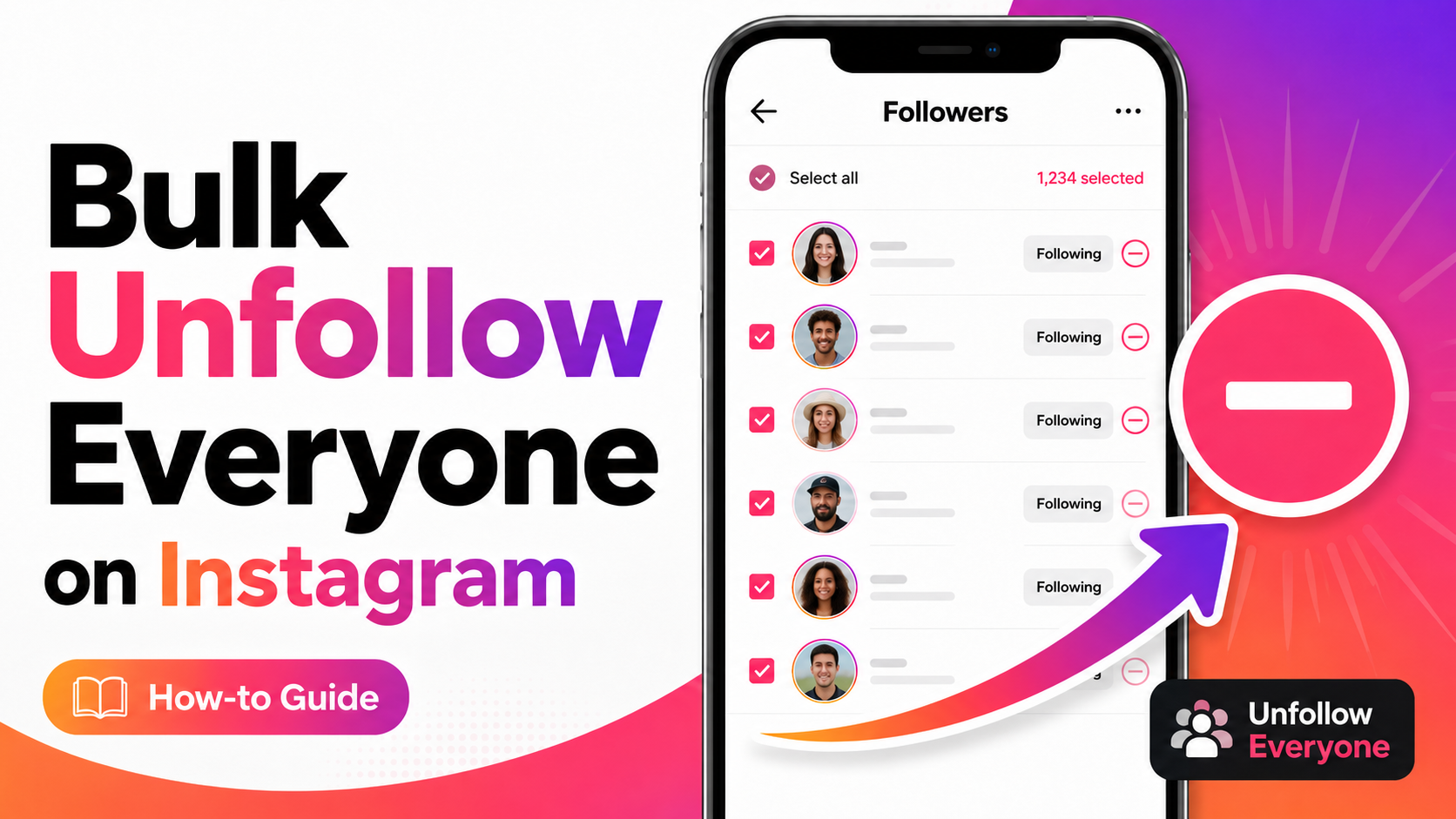
Bulk unfollow your entire Instagram following in a few clicks. Filter to everyone who doesn’t follow you back, preview before you commit, and let Redact pace the cleanup so Instagram doesn’t block you.
Runs locallyPreview modeKeep-list35+ sites
Why bother
A smaller, intentional following list is a calmer feed
Before
A feed full of accounts you don’t recognize, brands you forgot, and people from a life you’ve moved on from.
After
Only the accounts you actually care about. A cleaner public profile and a feed that reflects who you are now.
Most people clear out
Accounts you no longer recognizeInactive or abandoned profilesOld phases of lifeOff your interests nowPlain old clutter
⚠
Instagram fights back
Instagram has no one-click “unfollow everyone” button on purpose. Spam past its hidden limits and it freezes your account. This is exactly why doing it by hand, fast, backfires.
No native tool
The closest built-in option, “Least Interacted With,” shows only ~49 accounts at a time.
~100-200/day
Established accounts can unfollow ~100-200 a day before risking a block.
24-48 hrs
Go too fast and an action block can lock the feature for 1-2 days.
The takeaway. The winning move isn’t “unfollow as fast as possible.” It’s to filter precisely and pace the removals, which is exactly what Redact’s Schedule mode does.
FAQ
Bulk unfollowing on Instagram, answered
Can you unfollow everyone on Instagram at once?
Not with a single native button. Instagram’s built-in “Least Interacted With” list only surfaces around 49 accounts, and everything else is one tap at a time. A tool like Redact works through your entire following list for you.
Will I get banned or action-blocked for mass unfollowing?
You can if you go too fast. Instagram throttles unfollows and may impose a 24 to 48 hour action block when you cross its hidden limits. Pacing the removals, or letting Schedule mode do it for you, keeps you under the threshold.
How many people can I unfollow per day?
For established accounts in good standing, roughly 100 to 200 per day is the commonly cited safe ceiling, with newer accounts much lower. Spreading them out across the day matters as much as the daily total.
Does unfollowing remove my followers too?
No. Unfollowing only changes who you follow. Your followers stay put unless you remove them separately.
Will people be notified when I unfollow them?
No. Instagram doesn’t send a notification when you unfollow someone. They’d only notice by checking their own follower list.
Can I keep following a few accounts I care about?
Yes. Add their usernames to the Preservation Options box and Redact will skip them, even if they match one of your filters.
Take back control of your following list
Filter, preview, and clean up your entire Instagram following in minutes, without tripping Instagram’s limits.