
With Redact, you can remove all of your Discord messages with a single click, or you can target them by things like keywords, dates, where they were posted, or even specific people they were posted to.
The Redact app gives you control over your social media presence, and your social media past as well. Keep your online reputation clean, keep it private, or get rid of it entirely.
In addition to Discord, Redact works with over 35 different social media sites. From Facebook and Reddit to Twitter and Slack, and everything in between. No other app works with this many sites, and Redact is free to download and try.
OK, back to the topic at hand, which is removing Discord messages in bulk all at once. Let’s get started with the how-to.

Step-by-Step Guide to Delete All Discord Messages at Once using the Redact App
Step 1: Download and Install Redact
- Visit the official Redact.dev website
- Download the Redact application for your operating system. (located in the top right)

Step 2: Connect your Discord account
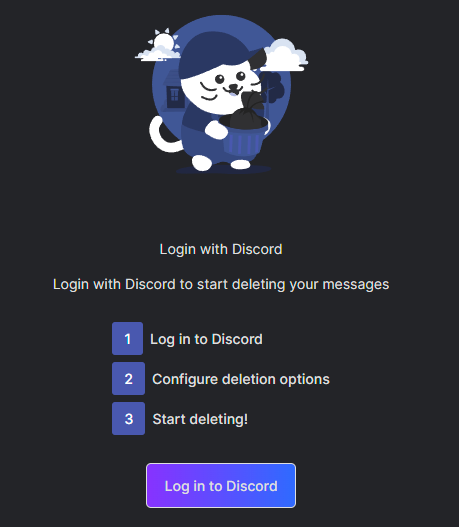
- Open the Redact app and log in to your Discord account securely.
- Follow the prompts so Redact can find and manage your messages within Discord.
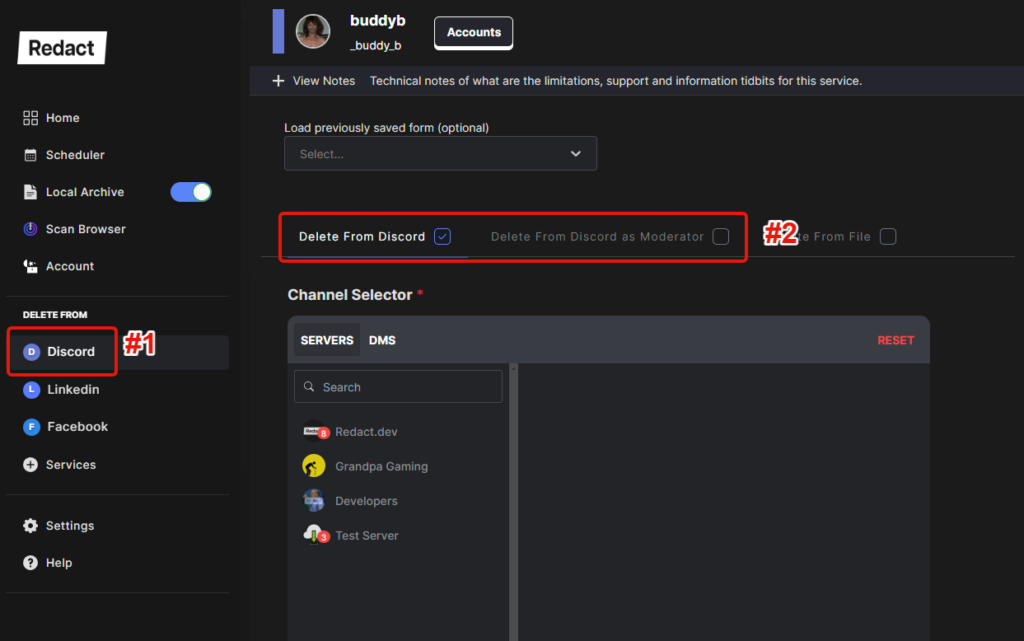
Step 3: Select Discord & tell Redact what type of account you have
- Choose Discord from the sidebar.
- This will bring up Discord on the main screen. From here, you should select “Delete From Discord“. There is also a mass delete option for Discord moderators, but for this how-to we’re sticking to individual / personal Discord accounts.
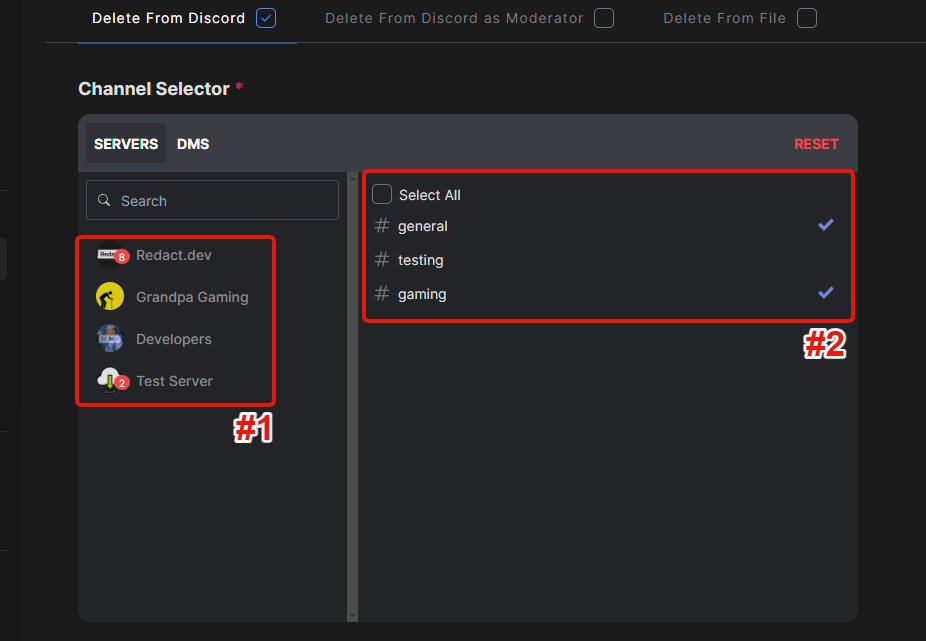
Step 4: Choose your server(s) and channels
- Choose which Discord server(s) to delete from.
- This will allow you to target specific channels within that server.
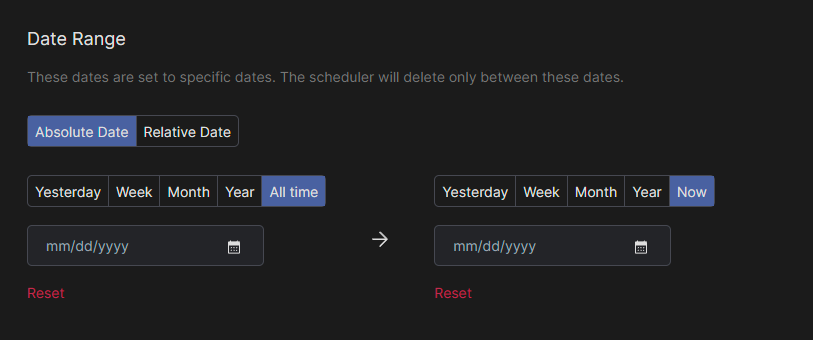
Step 5: Select your date range. Default is set to all-time.
- Choose which date range you want to delete from. To delete all-time messages, leave it as the default settings, as seen in the screenshot below.
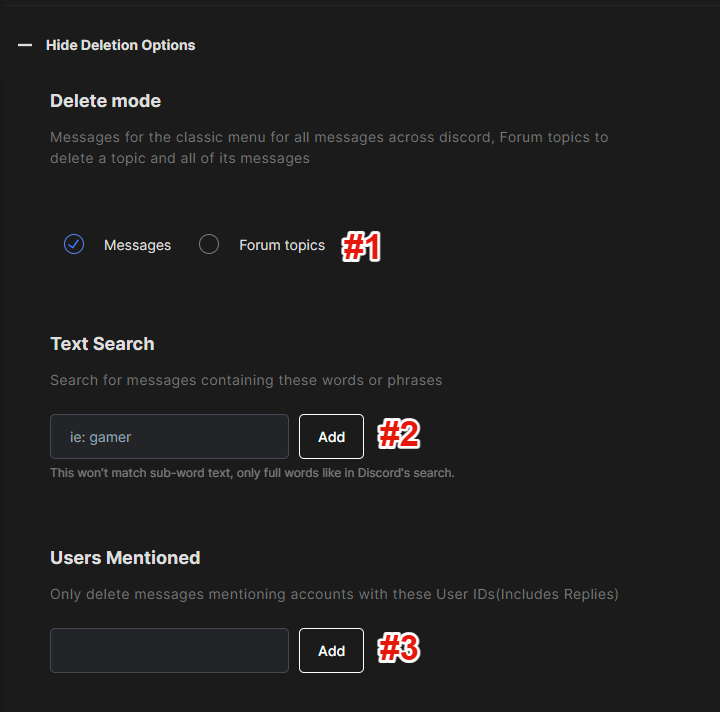
Step 6: Select your deletion options.
- Choose which type of content you’re trying to remove. Messages is the classic option for all messages across Discord. Forum topics deletes a topic and all of its messages.
- If you’re trying to remove messages that contain specific keywords, this is where you add those words.
- If you’re hunting for messages where specific users were mentioned, this is where you enter those usernames.
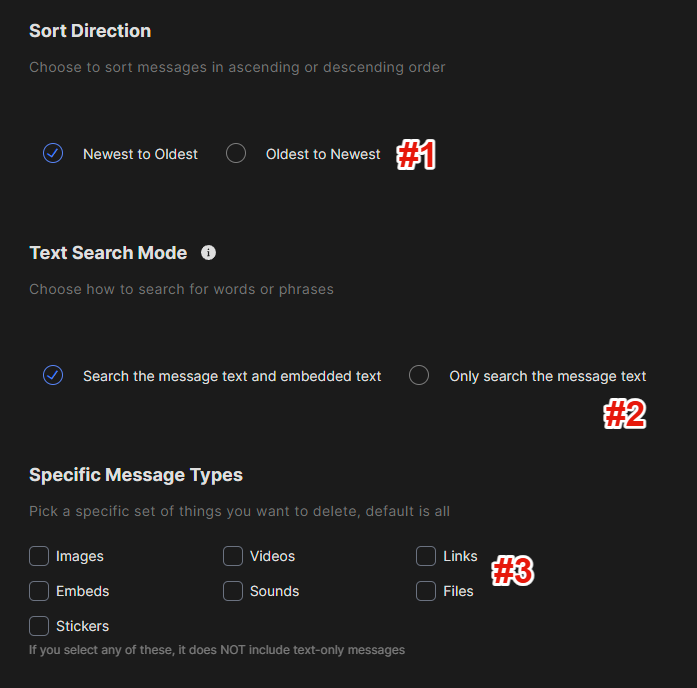
Step 7: Set your search options
- This option lets you start at the beginning of your history and search forward, or start at your newest messages and search them backwards. This setting is useful for people who have a lot of history within their Discord account.
- Determine how to search for words or phrases.
- If you select any of these, it does NOT include text-only messages. The default search setting, no boxes checked, is to search all types of messages. If you select one or more of the boxes, it will only look for what you have checked and skip over text-only messages. You will want to do a few test searches just to be sure.
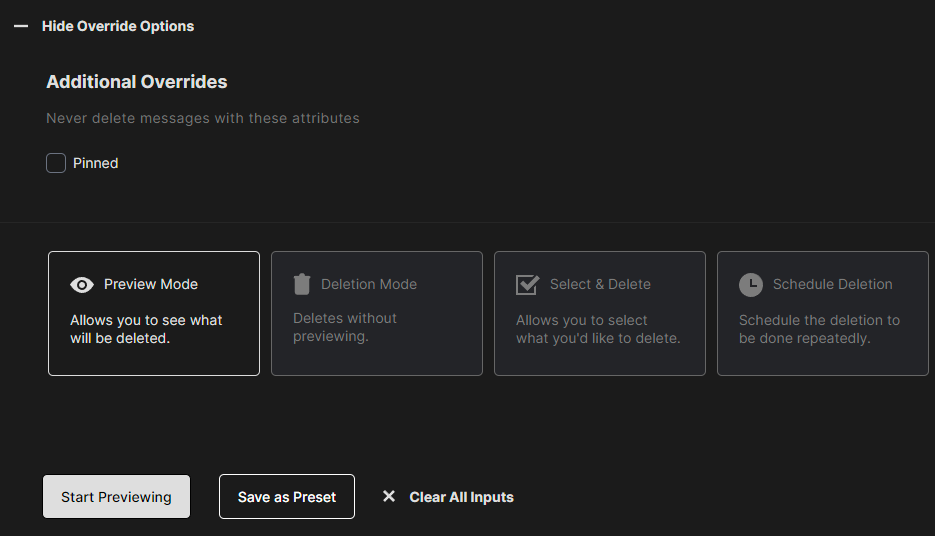
Step 8: Test searches & deletion modes
- Preview Mode. I very highly recommend using this mode a lot. It lets you tweak your search settings and do dry test runs. The last thing you want is a bulk wipe of your Discord history that catches the wrong thing. Preview mode is your friend, use it often!
- Deletion Mode. This is it, the real thing. Once you press that button, this data can’t be recovered. Make sure you check the results in preview mode before you start deleting.
- Select and Delete. This is the happy medium for those of you who aren’t ready to give complete control to the Redact App. Here you can browse the search results of your Discord data while picking and choosing what to delete.
- Schedule Deletion. This is where you can schedule regular deletions. Want to delete all messages from a specific server/channel once a week on Sunday night? Easy. Want to automatically wipe your entire Discord history every day at midnight? Cake.
That’s basically it. With our app you can automate managing, cleaning up, or mass deleting your Discord content. We also support most other mainstream social media sites.
Tips for Managing Your Discord History
- Automate history deletion. Use Redact’s scheduling feature to automatically delete old Discord messages so your chat history stays clean.
- Back up what matters. Before deleting, export and save any conversations or shared files you actually want to keep.
- Share less going forward. Think twice before posting sensitive details or files in future Discord chats.
Why Choose Redact for Discord?
Redact does the tedious part for you. The filters catch exactly what you want gone, the bulk tools remove it, and everything runs on your own device.
Download Redact and clean up your Discord history today. A few clicks and it’s done.