
Need a quick and automatic method to remove all your Discord images? Need to do it quickly in just a few clicks? We got you, read on.
The number of memes and random images most of us post to social media over the years accumulates to epic proportions. One day, you think to yourself “Hmm, maybe I shouldn’t have posted that outlandish meme…”, or “maybe I shouldn’t have shared that leaked picture of [insert celebrity]…”.
So, what do you do about it? Well, you can spend countless hours sifting through all of your images on Discord, removing them one by one. Or you can make use of Redact’s Discord App. Our privacy app allows you to target specific types of posts and/or media for mass deletion. And yes, that includes images.
Here’s What Setup Looks Like
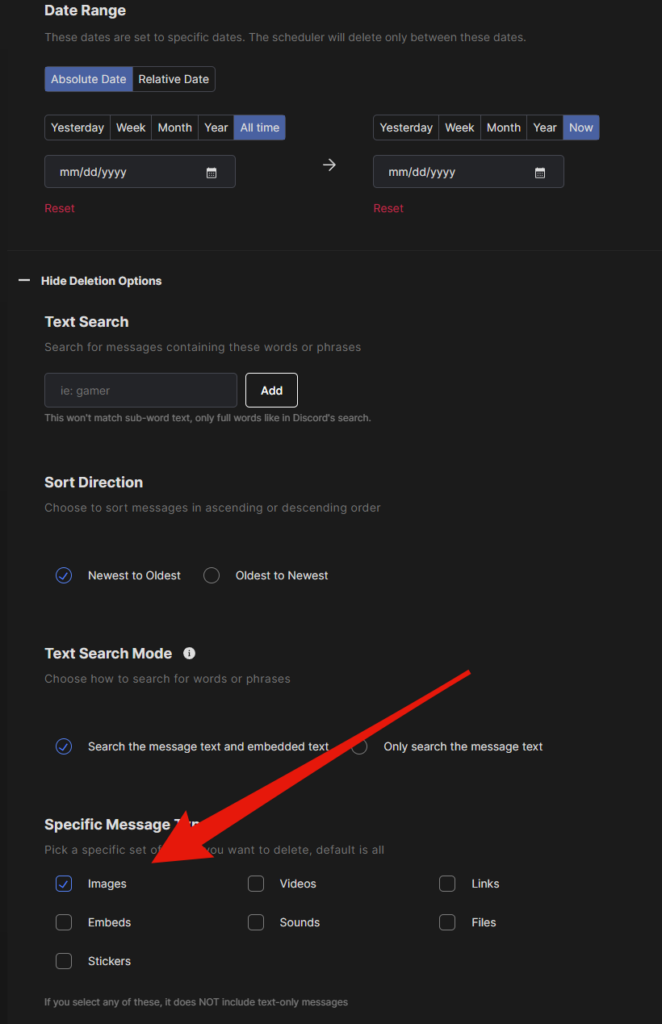
So basically, all you have to do is copy the settings exactly as you see here and Redact will find and remove all of your images, automatically.
There is also another setting you will have to adjust. It’s the setting that tells the app WHERE to look for your images. You can find and delete your entire image history, or you can segment it based on servers and/or channels. Take a look at this screenshot and you’ll see what I mean.
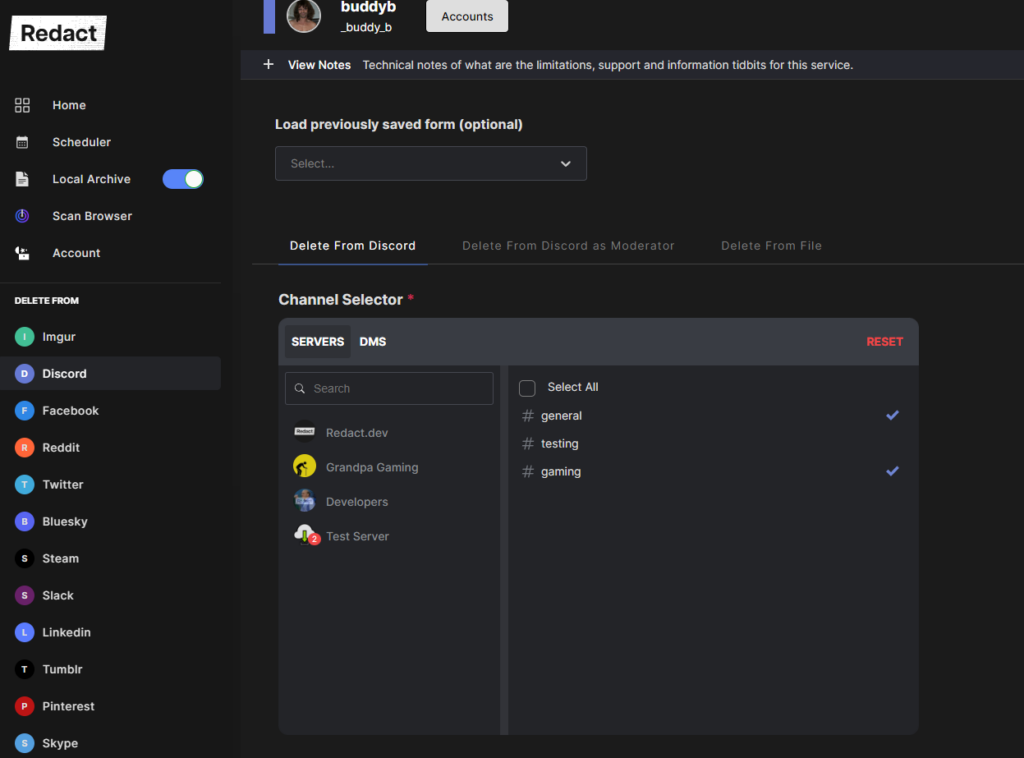
In the image above, you can see a list of servers, and to the right of that you see the channels within the selected server. So basically, you simply choose which servers you want to purge your images from, and run the tool. Then, based on your filter settings you’ve entered, the app will return a list of images to remove in bulk.
Final Deletion Options
After all is said and done, you will be presented with the deletion options. This is the part of the process that actually removes all your images from Discord.
You have a few options at this step, so choose carefully.
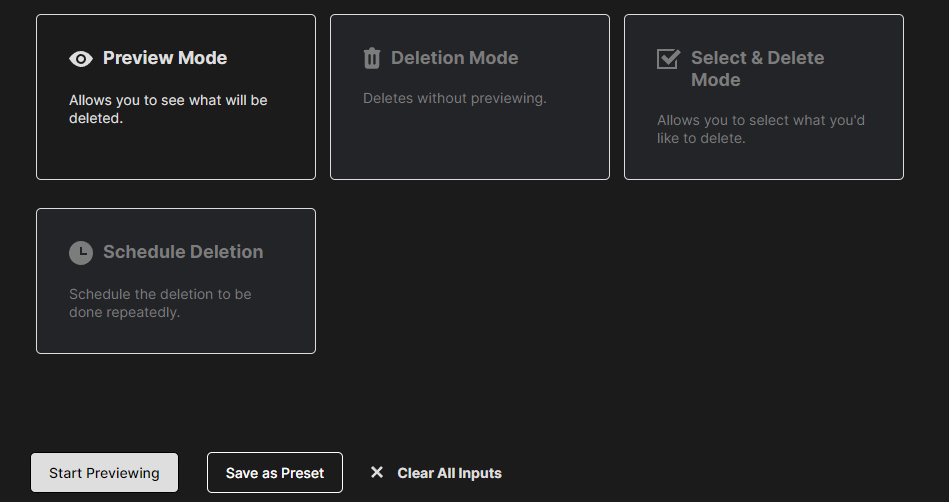
Always use preview mode before you do deletion mode. Preview mode is your dry-run tool so you can actually take a look at the content you’re about to nuke from orbit. If you go straight to deletion mode and push the start button, you could lose some of your valuable content that you didn’t mean to delete.
One more reason to clear out old images. Anything you’ve posted stays visible to everyone in the channel until you remove it, and Discord’s file links have historically been shareable outside the app entirely. Discord moved to expiring file links partly to rein that in, but deleting the message is the only way to actually pull an image out of the conversation.
Video Walkthrough
We went ahead and did a short video walkthrough so you can see, in real time, how it all works.