

Your Instagram profile says a lot about you. Over the years, it can become a mix of personal moments, half-finished captions, inside jokes, or posts that just don’t reflect who you are anymore. If that history doesn’t fit anymore, deleting it one post at a time is slow, frustrating work.
Redact makes it easy to bulk-delete Instagram posts with smart filters, so you stay in control without wasting hours scrolling.
A quick note on pricing. Deleting your last 30 days of posts and reels is free. Clearing anything older than that needs a premium subscription. You can also try Redact free on Facebook, Reddit, Twitter, and Discord.
Why Delete Old Instagram Posts?
People clear out old posts for all kinds of reasons.
- You’ve changed and old posts don’t reflect who you are now
- You’re applying for a job or school and want a cleaner image
- Your profile looks cluttered or inconsistent
- You’ve grown your brand and want a fresh start
- You want to remove posts with low engagement or old captions
Whatever the reason, clearing out older content helps you feel more confident about what you’re sharing publicly.
How Redact Helps You Delete Instagram Posts Easily
Redact connects directly with your Instagram account and lets you choose exactly which posts to remove based on filters you control.
Here’s how it works.
1. Download Redact.dev
Go to Redact.dev and download the app for Windows, macOS, or Linux. Create an account for free.
Redact also runs on iOS and Android, all from a single account and subscription.
2. Connect Your Instagram Account
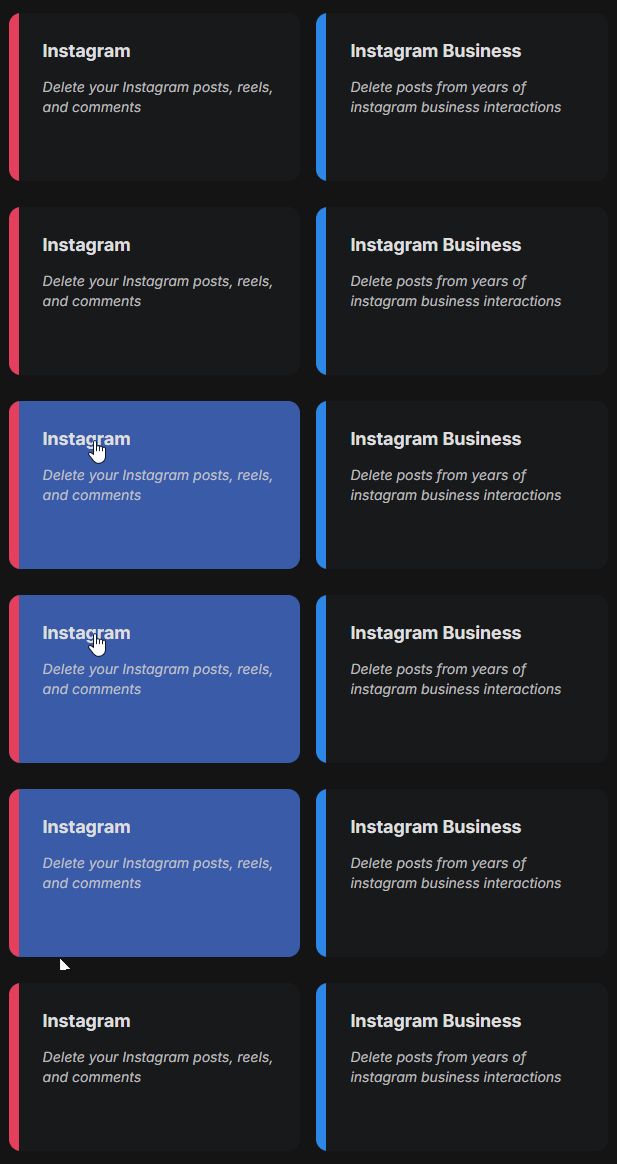
Once you launch Redact and log in, choose Instagram from the list of supported sites.
You’ll be prompted to log in through Instagram. Your login details are never seen or stored by Redact. They’re sent directly from your device to Instagram, just like a saved login in your browser. Everything stays local to your device.
3. Select “Post” as the Content Type
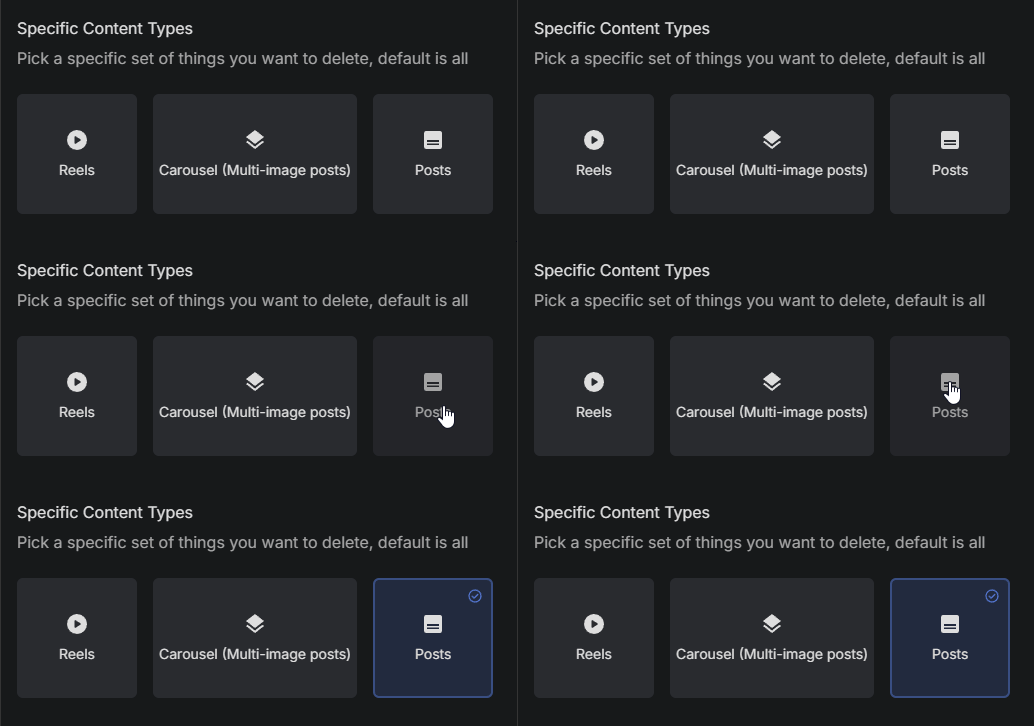
When starting a cleanup, choose “Post” in Redact’s content selector. This tells Redact to target only your standard image and video posts, leaving your Reels and Carousels alone.
Filters to Make Post Deletion Smarter
Redact includes advanced filters that let you pinpoint which posts to delete, saving time and reducing mistakes.
1. Filter by Date Range
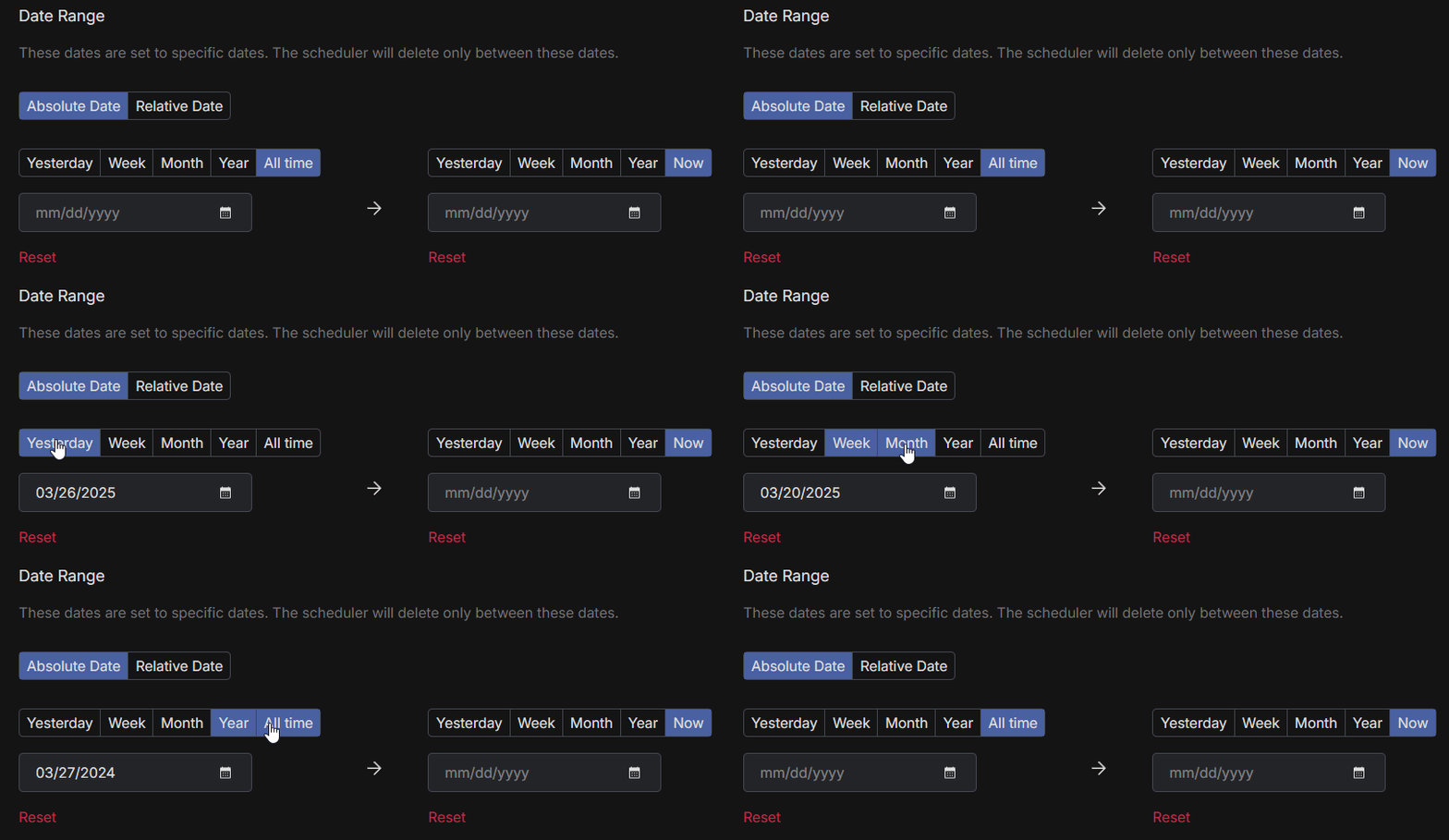
If you only want to delete posts from a certain time period, set a date window.
- Choose a start date to delete content made after that point
- Choose an end date to delete content made before that point
- Use the calendar tool to quickly pick a specific day, month, or year
To reset the filter, click the red “Reset” button.
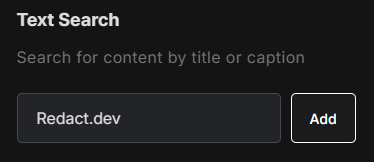
2. Delete Posts Based on Caption Text
You can choose to delete posts that include specific words or phrases in the caption.
Say you want “senior trip,” “#YOLO,” or “high school days” gone from your grid. Add those phrases and Redact queues up every post whose caption matches.
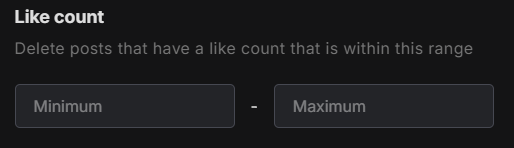
3. Delete Posts Based on Like Count
Set a range for how many likes a post must have to be deleted. This helps remove posts that didn’t perform well or that went unexpectedly viral.
Setting it under 20 likes, for instance, clears out the posts nobody saw.
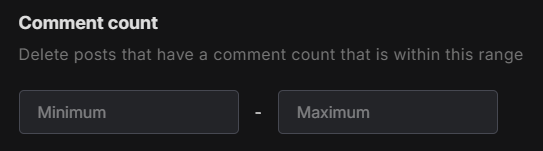
4. Delete Posts Based on Comment Count
Filter posts by how many comments they received. Use this to delete posts with no interaction, or to remove the ones that drew unwanted attention.
Zero-comment posts are the obvious target, but this also catches the 200-comment threads that turned into arguments.
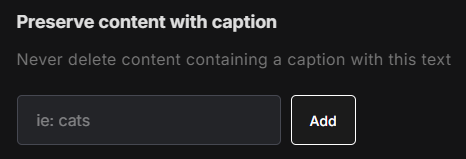
5. Preserve Posts with Specific Words in the Caption
You can also protect important content by telling Redact to keep posts that contain specific phrases.
Keep anything that mentions “portfolio,” “graduation,” or “promotion” while everything else goes.
6. Choose Your Deletion Mode
Redact has four deletion modes, so you can mass delete posts with as much or as little precision as you want.
- Preview Mode shows you every post that matches your filters before anything gets deleted.
- Select and Delete Mode lists all the matches and lets you bulk-select the ones you want gone.
- Deletion Mode erases everything that matches your filters in one pass.
- Schedule Deletion automates ongoing cleanups based on your filters.
We recommend running a Preview before a full deletion, so nothing you care about gets caught in the sweep.
Why Redact Is Better Than Doing It Manually
Instagram gives you no way to delete multiple posts at once, and no way to filter by engagement or caption text. Redact’s Instagram tools cover all of it.
You can preview every post before deleting, filter your content however you want, and even schedule regular cleanups. No endless scrolling or second-guessing required.
Clean Up Your Instagram Profile With Confidence
Maybe you’re job hunting, maybe you’re rebranding, or maybe your old posts just don’t feel like you anymore. Redact gets the cleanup done in minutes instead of weekends.
Posts are only one piece of your footprint, too. When you’re ready for a deeper clean, Redact can also mass delete your Instagram DMs and bulk unfollow accounts.
Start your Instagram cleanup today at redact.dev and take control of your digital history.