
Looking for an easy way to remove a Discord DM in bulk without having to manually delete each individual message? Redact is your solution.
Redact is an app built specifically for the mass removal of content from all major social media sites, including Discord.
Delete Discord DMs Video Walkthrough
For those of you who’d rather watch than read, this is a video version of the instructions below. 🙂
Let’s Get Started!
The first thing you want to do is go download Redact. Our app is free to download and test.
Once you’ve downloaded and installed Redact, you will need to log in to Discord through the Redact interface. After you log in you should be looking at a screen like the one below.
Initial Redact Discord Screen
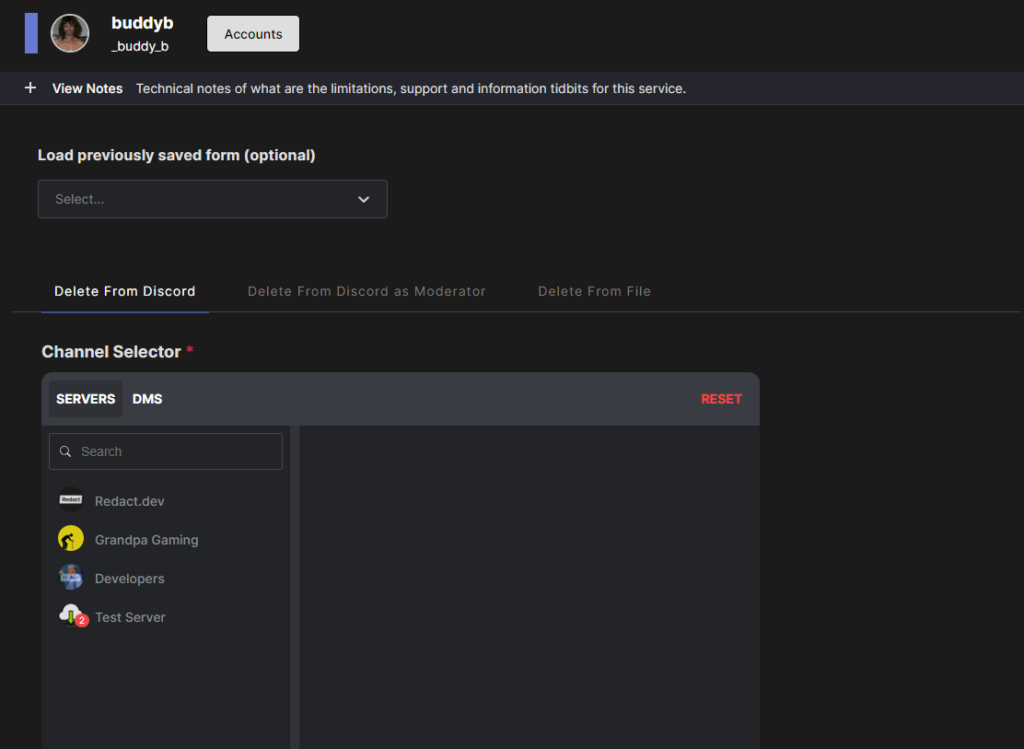
Click Over to “DMS” Tab
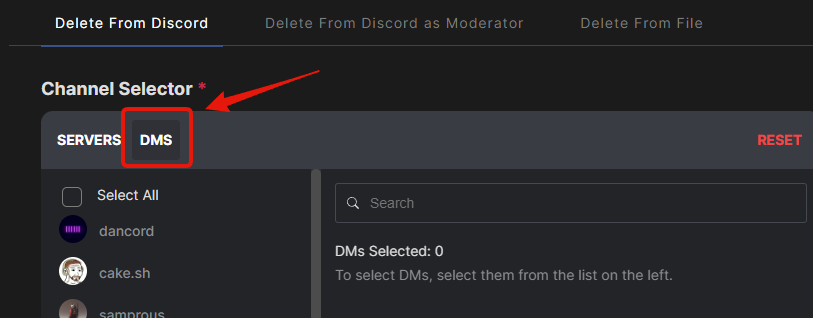
You want to select the DM tab and you’ll then see all your direct messages load in the left side of the screen.
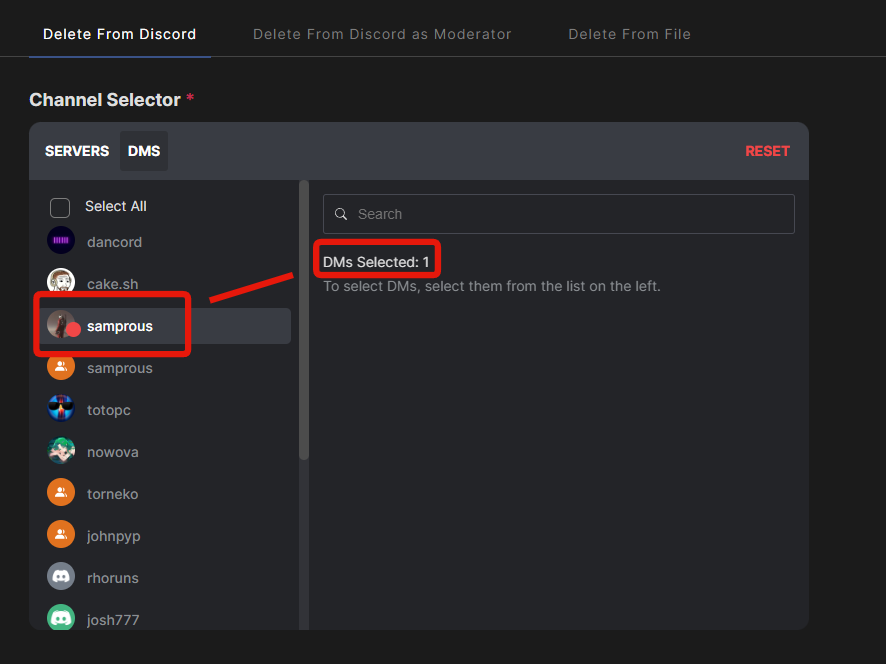
Choose One or More DMs to Delete
Phase Two: Search Settings
So after you have chosen which DM or DMs you want to delete, we have to now tell the Redact App what type of content to look for, what date ranges to search within, and other filter settings.
So as the title of this post says, we are actually going to delete the entire message history with this specific person. So that’s what our directions below will be based on. However, you can always tweak your settings to fit different scenarios.
Date Range Selection
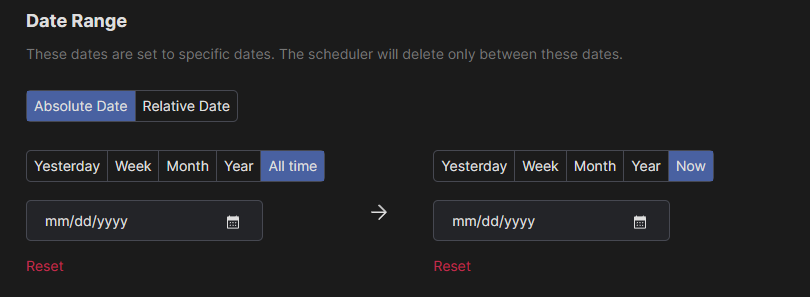
If you want to remove your entire DM history with this user from the very beginning to the last message, you want to have the exact settings set as you see in the screen capture above. This will nuke the whole conversation in its entirety.
Text Search & Sort Direction
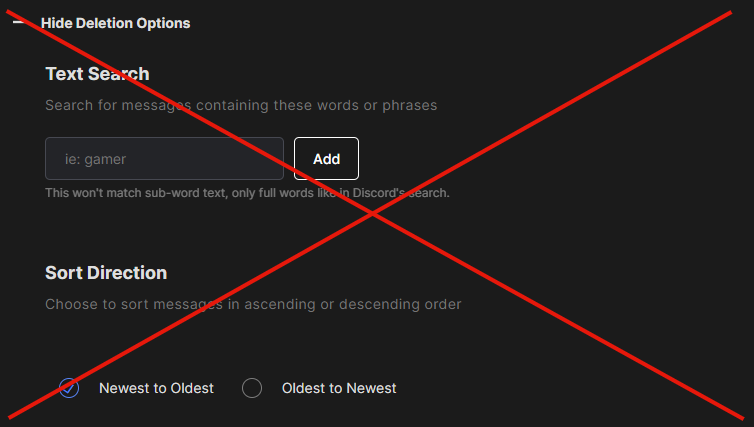
For the purpose of this post, neither of these two options matter. Don’t enter anything into the text search box. You can, if you deem it necessary, change the sort direction. Sort direction will have no adverse effects on removing the DM content.
Text Search Mode
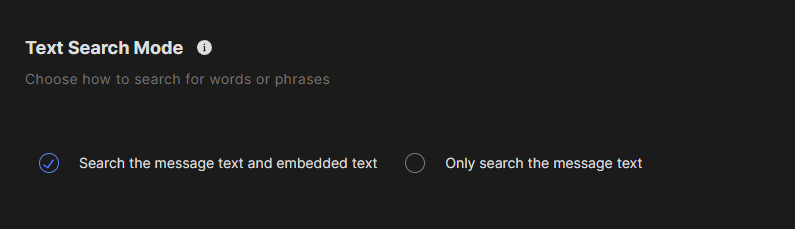
Make sure the first bubble is selected on this option. It tells the app to find both text DMs and other DMs like images and videos you may have sent/received.
Specific Direct Message Types
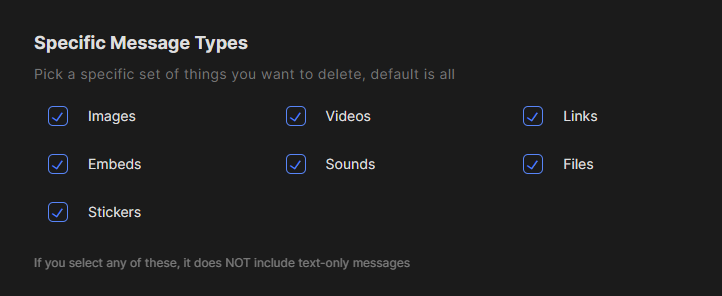
Make sure you have all these boxes checked. This tells the Redact App to locate and gather all the DMs with this user, regardless of what type of content was sent.
Override Options
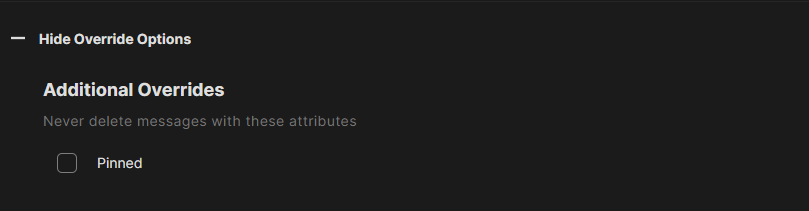
Ignore this option. You can make sure it’s unchecked to be safe.
DM Deletion Options
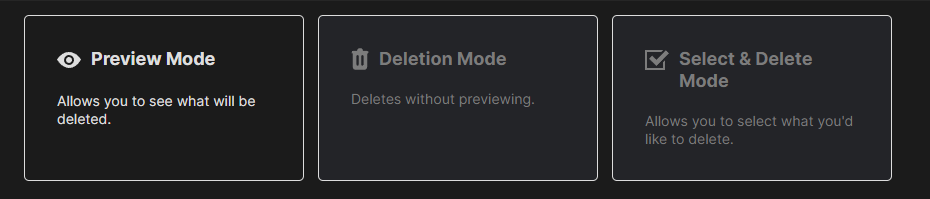
Use the preview mode to double check your DM conversation to ensure it’s the correct one. You just want to make sure you’re not deleting the wrong direct message.
Once you confirm that you have the correct DM in your preview mode, switch over to deletion mode and wipe that DM from both sides of the conversation.
That’s it. Your DM is completely deleted and removed from history.